
Email it in
Forward the school email. Skip the waffle.
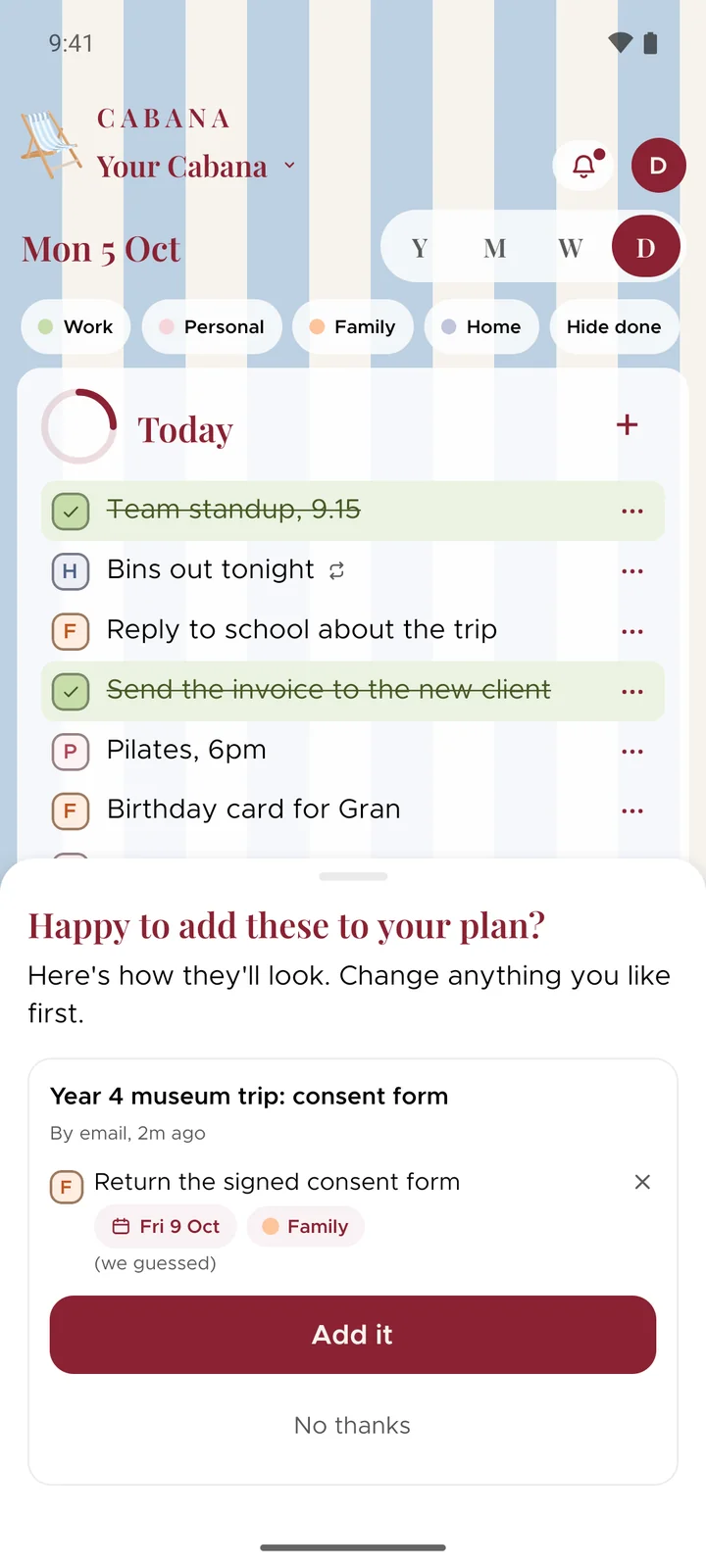
Your plan has its own email address. Forward the trip letter, the dentist's reminder or the booking confirmation, and it turns up as a task waiting for a quick yes.
On iPhone, Android and the website
How it works
Find your plan's address
Email it in is in the menu. Copy the address, or save it as a contact so it's there whenever you forward something.
Forward the email
From any inbox, on any device. We read it for the job it's asking of you and the day it's due.
Say yes
It waits behind the bell. Check the task, change the day or the category if you like, and add it. Or don't.
Good to know
- One email, one task
- Unless the email really is asking for several things. A link in it comes too, as long as it's a proper one and not something dodgy.
- We don't keep the email
- It's read to make the task, and then it's gone. The privacy notice says exactly what's recorded about an email arriving.
- A fresh address whenever you want
- The address belongs to the plan, and only the plan's owner can see it. Get a new one and the old one stops working straight away.