
Getting started
Welcome in. Here's the lay of the land, from your very first task to the four ways of looking at your time.
Updated on 14 September 2026
Your first plan
Your account comes with a plan called Your Cabana. It opens on this week, with four categories ready to go: Work, Personal, Family and Other. There are no tasks in it yet, just seven days waiting for you. A short tour shows you round the first time, and you can skip it.
To rename the plan or start another one, tap its name at the top.
Adding a task
On the website, press Add task at the top (it's in the bar along the bottom on a smaller screen) and it lands on the day you're looking at. You can also press Add a task at the end of any day, or anywhere on an empty one. Type it, press Enter, and a fresh row opens underneath for the next thing. Pressing N starts a new task from anywhere.
In the app, press + Add task in the bottom bar, or + Add a task at the end of a day. While you type, the bar above the keyboard has + Next task and Done. The return key starts a new line, because a task can be longer than one.
Sub-tasks
Big scary things are easier in small pieces. Tuck a task under another in whichever way suits you:
- Open the task's menu (the three dots on it) and choose Add a sub-task.
- On the website, press Tab while you're typing. Shift and Tab brings it back out.
- Drag it sideways: right to tuck it in, left to bring it back out. On a phone, hold the task for a moment before you move it.
Tasks go three levels deep. Ticking a task ticks everything under it, and ticking all the little ones ticks the big one for you. If only some are done, its tickbox shows a dash. Repeating tasks don't tick themselves, and here's why. The small arrow beside a task folds its sub-tasks away and shows how many are hiding.
A task's menu
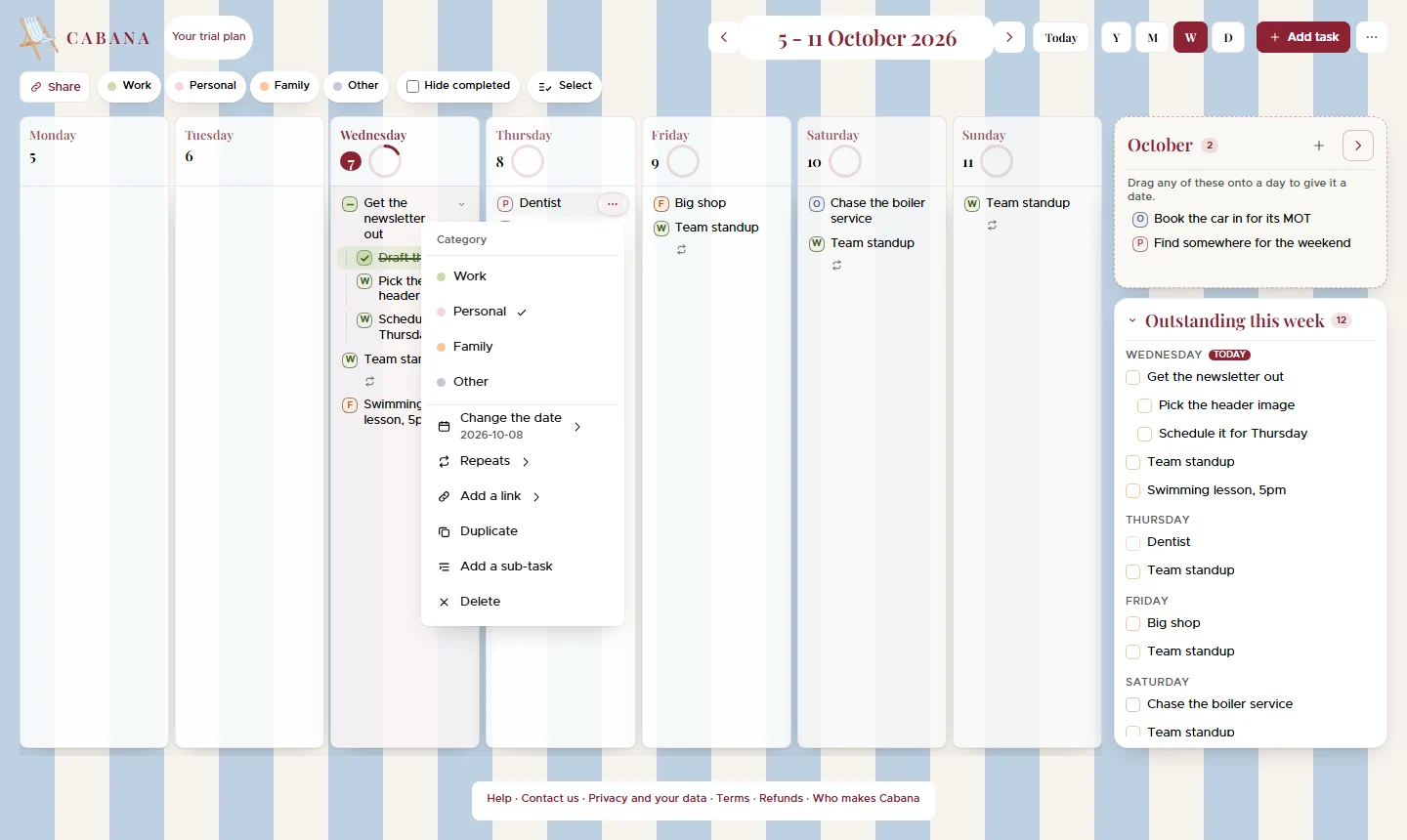
The three dots on a task open everything else you can do to it: Category, Change the date, Repeats, Add a link, Duplicate, Add a sub-task and Delete. Change the date works in every view, even for a day that isn't on screen.
Year, month, week and day
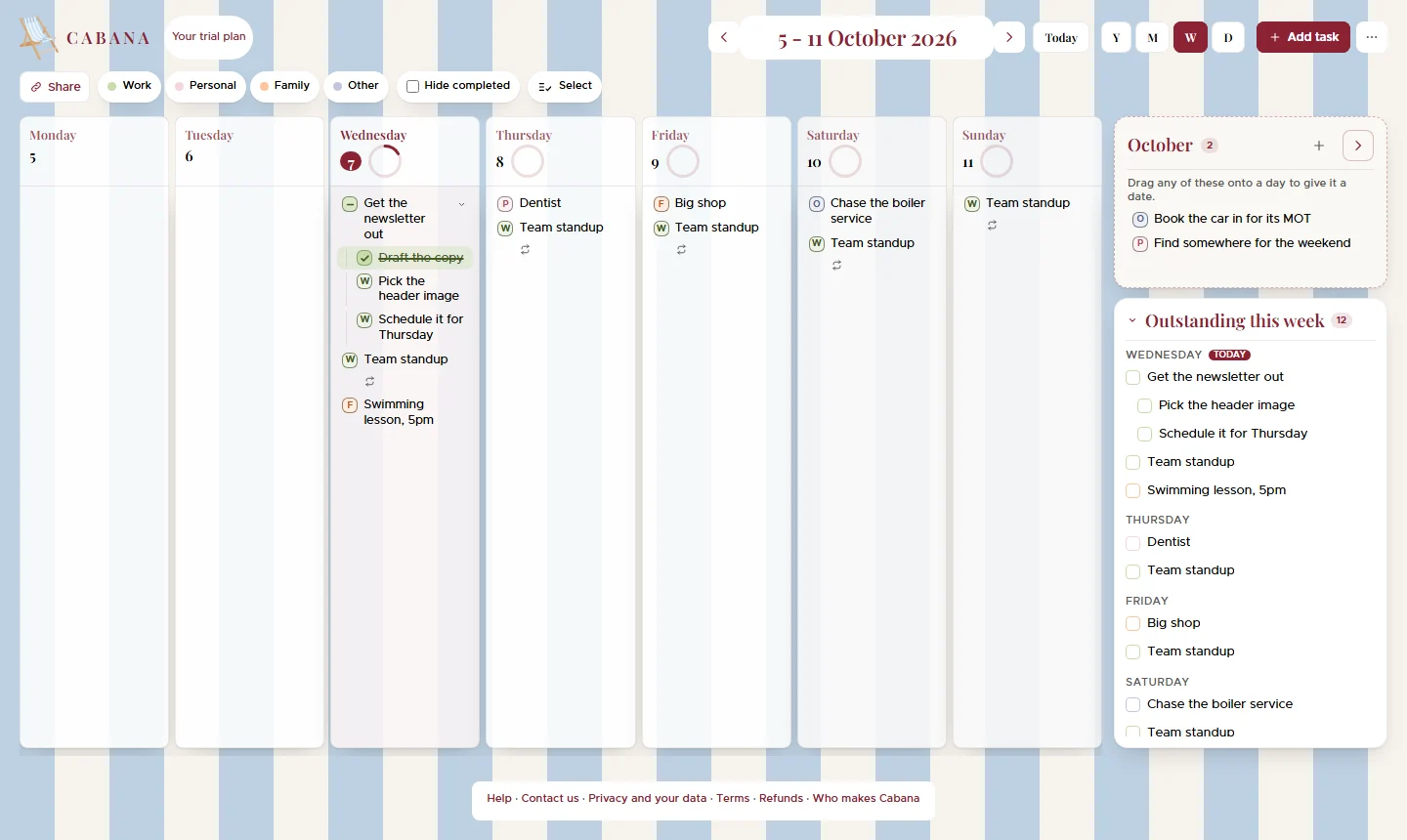
The Y, M, W and D buttons switch between the four views. The arrows step back and forward, Today brings you home, and on a touch screen you can swipe.
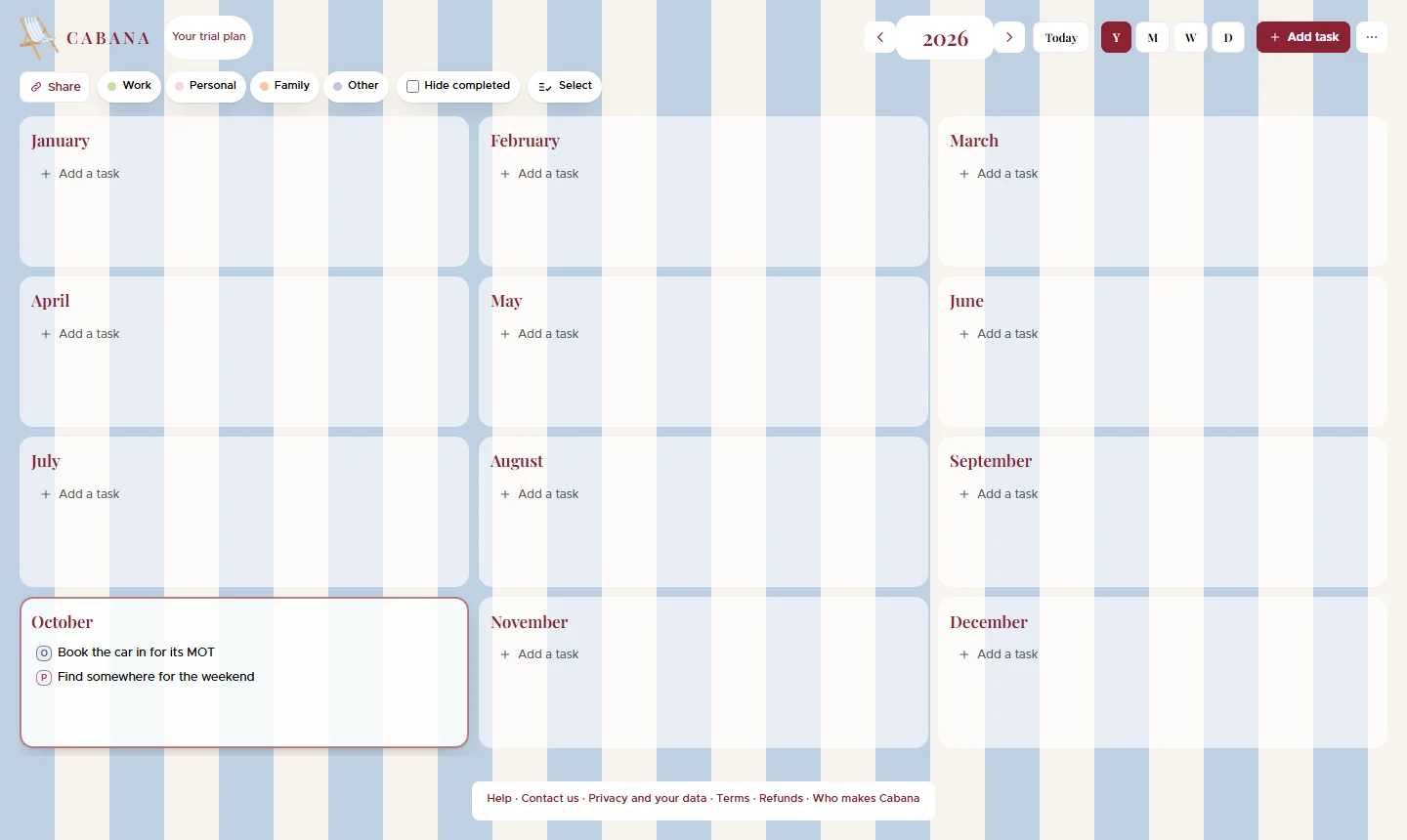
- Year is twelve months, each one holding its tray of things with no day yet.
- Month is the shape of the month. On a wide screen every day is a little card showing its first few tasks. On a phone it's a tidy grid, and tapping a day opens it.
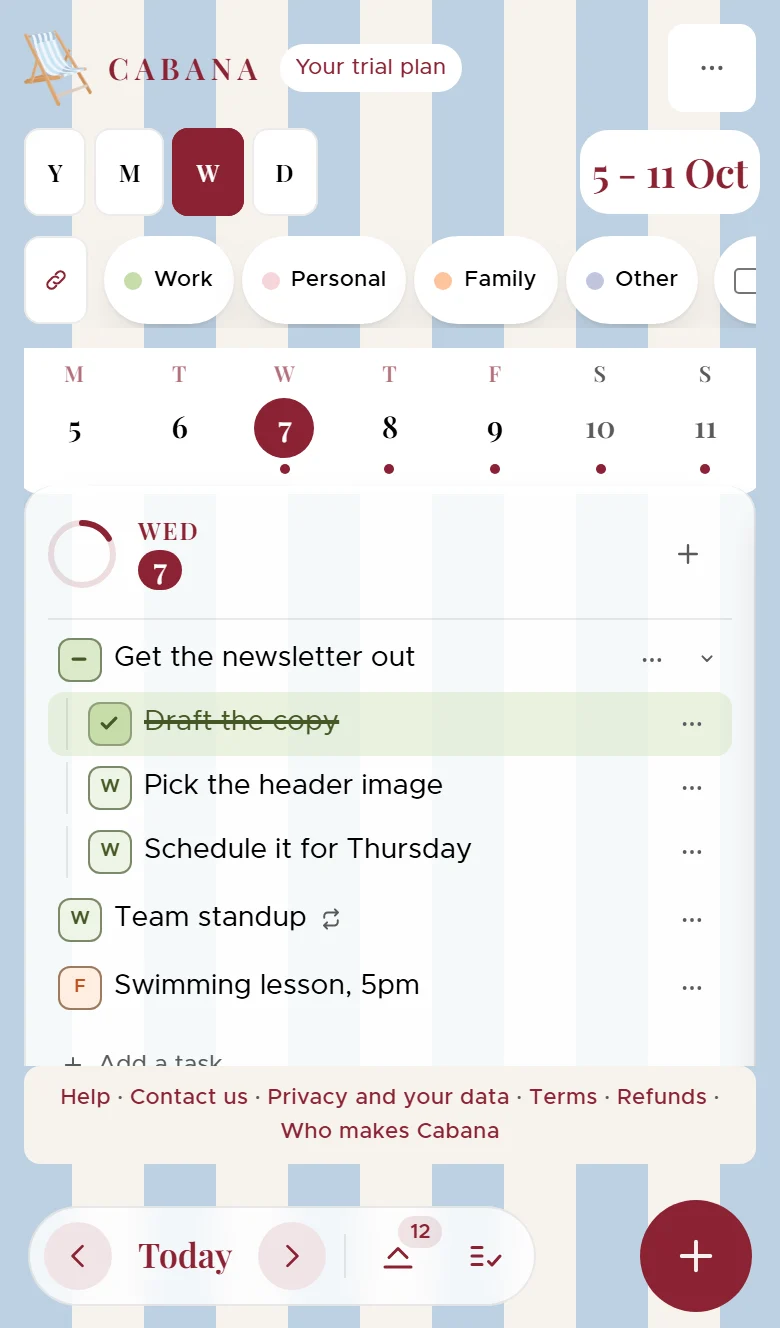
- Week is where most planning happens. A wide screen shows seven columns. A phone shows the seven days as bubbles along the top with one day open underneath, and a swipe moves you a day.
- Day is one day, all of it.
On the website, 1, 2 and 3 switch to month, week and day, T jumps to today and the arrow keys step through. The More actions menu has the full list under Keyboard shortcuts.
The month tray
Not everything needs a time. Some things just need a Tuesday, and some don't even need that yet. The month tray is where those wait: they belong to a month, not a day.
On a wider screen the tray is a panel beside or under the calendar. Press the month's name at the top to open it and add something, and hide it again whenever you like. On a phone, in the app or the browser, there's no panel: the year view is the tray, with a list for each of the twelve months.
When you've decided, drag it onto a day, or open its menu and choose Change the date. In the app's year view, Change the date is the way to move one.
Moving, copying or deleting several at once
On a computer, press Select beside Hide completed, or hold Cmd or Ctrl and click the tasks you want. On a smaller screen, and in the app, press Select several tasks in the bottom bar. A bar appears with ways to move them all a day or a week later, send them to the month tray, move them to a day you pick, Copy them or Delete them. If you change your mind, Undo puts everything back.
On a computer you can also drag any one of the tasks you've picked, and the rest come with it.
After Copy, every day and every tray shows a Paste button. Press the one where you want them. There's no paste shortcut, because a shortcut wouldn't know which day you meant.
Making it yours
- Tap a category along the top to show only that one, and tap others to add them back in. On the website, Hide completed tucks away what's done.
- Categories, in the More actions menu (the three dots at the top), is where the owner of a plan changes its categories.
- Stripes, in the same menu, has seven colourways for behind your plan.
Next, have a look at repeating tasks for the every-week things, or sharing a plan with your people.