
Repeating tasks
Pilates every Tuesday, bins on a Thursday, ringing your mum on a Sunday. Set them once and they turn up on every day they should, without forty copies clogging up your month.
Updated on 14 September 2026
Making a task repeat
Open the task's menu (the three dots on it) and choose Repeats. Pick Every day, Every week, Every month or Every year and you're done.
A repeating task is one task with a rule, so it only needs a day to count from. That's why tasks in a month tray can't repeat until they're given a day, and a sub-task can't have a rule of its own.
Fine-tuning the rule
Once it repeats, the rule reads back as a sentence, like Every week on Thursday, until I stop it. Tap any underlined part to change it.
- How often: every 2 weeks, every 3 days, anything up to 99.
- Which days of the week. The day the task sits on always stays ticked, so move the task if you want a different one. Fortnights count from Monday, so Monday and Friday land in the same week.
- Which day of the month: the same date (On the 14th), the same weekday (On the second Tuesday), On the last Tuesday, or On the last day. The weekday choices use the day your task is on, so a task on a Friday can repeat on the last Friday of every month.
Nothing slides to a nearby day. A task on the 31st skips the months that haven't got one, and the panel tells you how many times a year that works out to.
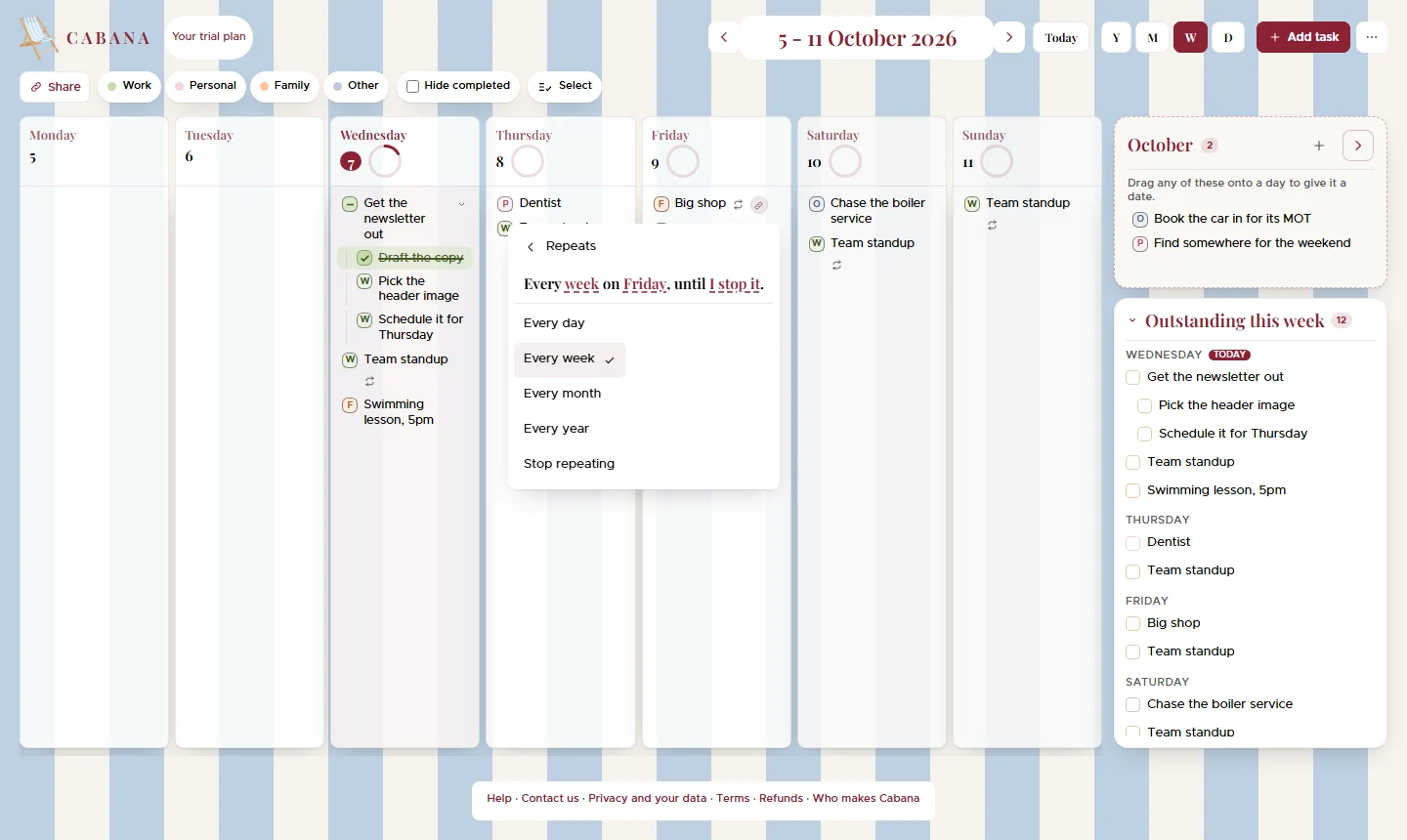
When it stops
Tap the end of the sentence to choose:
- Until I stop it, which is where every rule starts.
- In a month, three months, six months or a year, counted from the task's own day.
- On a date you pick.
- After a number of times. Cabana works out the date that lands on and shows it to you.
Switching to a different kind of repeat, say from weekly to monthly, starts the rule afresh, end date and all.
Changing just one day
- Tick it and only that day is ticked.
- Choose Delete just this one from its menu and that day is skipped. The rest carry on, and the message that pops up lets you undo it.
- Stop repeating from here ends the rule the day before, and keeps everything that came earlier.
Renaming it, changing its category or adding a link changes every day of it, because they're all the same task.
Moving a repeating task
Move the task on the first day it happens, by dragging it or with Change the date, and the whole rule moves with it and counts from the new day. Days you'd already ticked or skipped are cleared, since they belonged to the old days. If it has an end date, that moves the same number of days, so it still repeats as many times. Moving it into a month tray, or under another task, takes the rule away. Changed your mind? The message that pops up has an undo.
On any other day it repeats on, you can drag it up or down to change where it sits. On a phone, hold it for a moment first. It can't go to a different day from there. And because it's all one task, moving it on one day moves it on every day it repeats. You can drag its sub-tasks around under it too.
Sub-tasks on a repeating task
Sub-tasks come along to every day the task repeats on, and each day has its own ticks, so the checklist starts fresh every time. On a repeating task, you tick the big one yourself. Ticking all its sub-tasks just gives its tickbox a dash until you do, and ticking the big one leaves its sub-tasks alone. It works that way on every day it repeats, the first one too.
To take a sub-task off one day, open its menu and choose Delete just this one. It goes from that day, even if it's the very first one, and still turns up on all the others. The message that pops up lets you undo it. Want it gone for good? Choose Delete from every day instead.
Spotting one
A repeating task has a little repeat mark on its line. On the website, hover over the mark to read the rule. The rule is also written under Repeats in the task's menu.