
Bits & bobs
A board of notes for the lists that haven't got a day yet: starting one, filling it, giving a task a day, and tucking it away when it's done.
Updated on 26 October 2026
What it's for
Some piles of things belong together and haven't got a day yet: Christmas, a house move, a hen weekend, the garden. Each gets a note on your Bits & bobs board, and a task in a note waits there with no day at all until you're ready to give it one.
Opening it
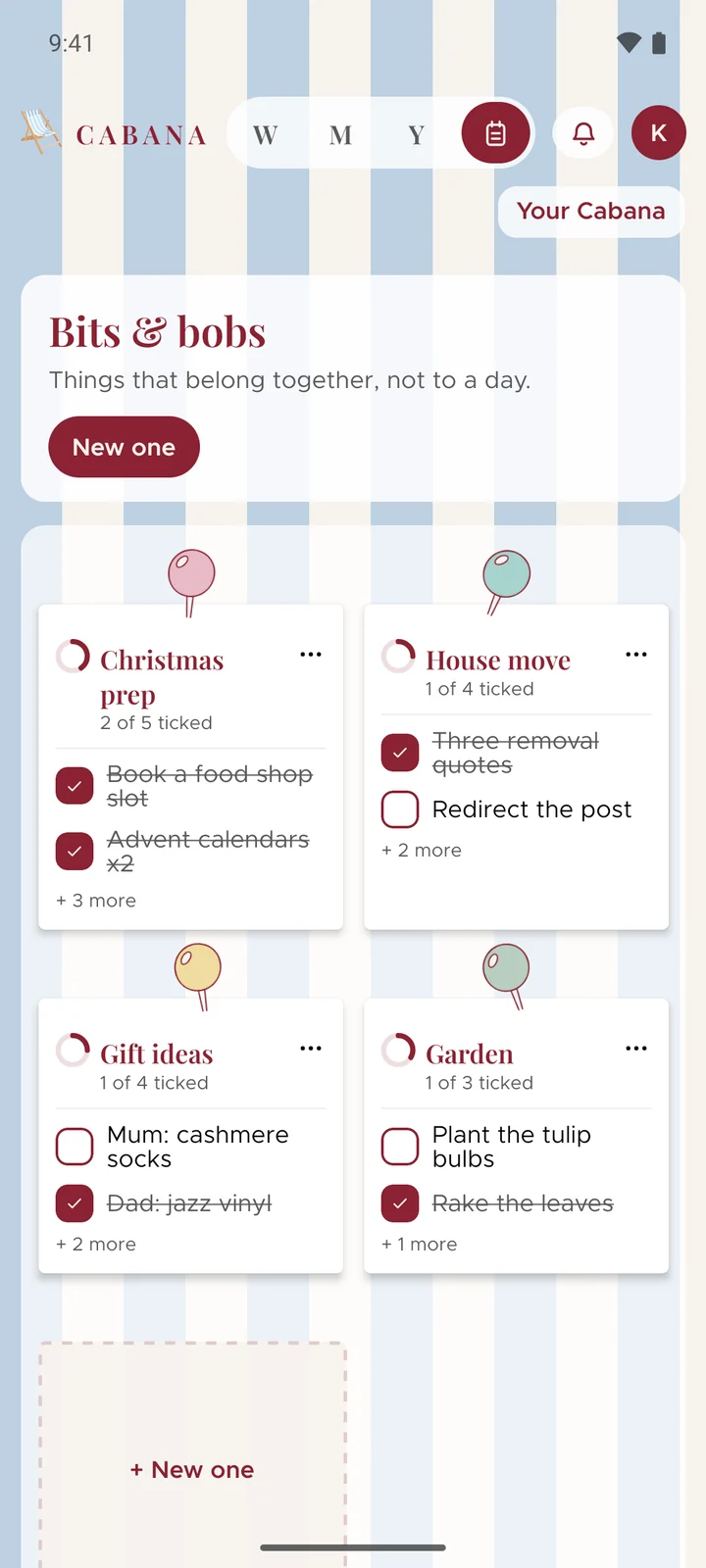
It's the little notepad beside the view buttons at the top, on the website and in the app. On a computer, pressing L opens it too.
Starting a note
Press New one and give it a name. It's pinned to the board with a coloured pin, which you can change from the note's menu. Six notes fit on a board, and a new board starts whenever you need one.
Filling it
Open a note and it works like a day: add tasks, tuck little ones under big ones and tick them off. You can say a list, paste one or snap a photo of one straight into a note too. Open the note first and then pick the way in, or choose the note when it asks where they should go.
On a plan of your own, Suggest a few more offers some ideas for what might be missing, and Sort it out puts what's there into groups that make sense. You see it all first and keep only what you want, and one Undo takes the lot back.
Giving a task a day
Give a task in a note a day from its menu, and it shows on that day as well as in its note. It's one task, so ticking it in either place ticks it in both.
When it's done
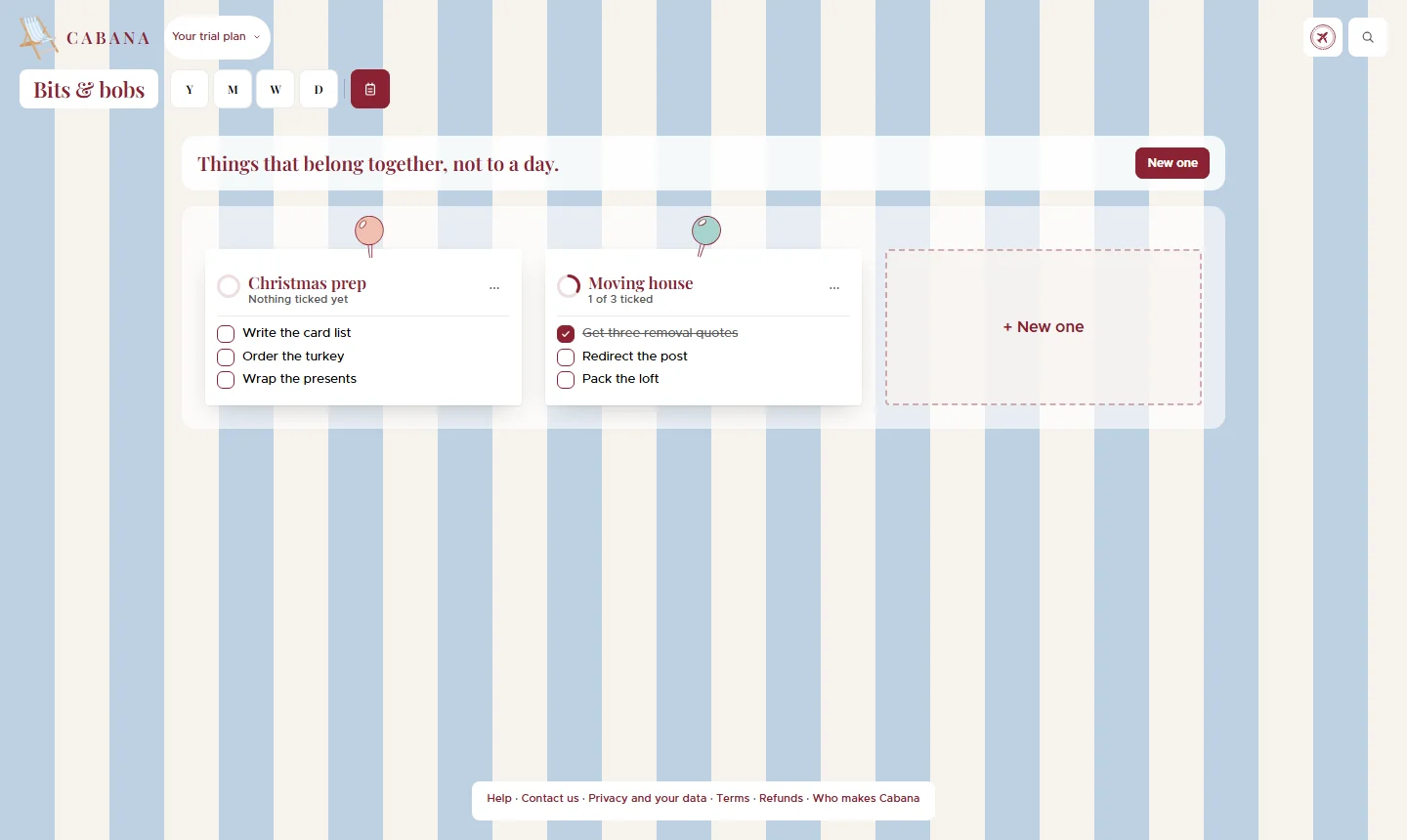
Ticking everything off doesn't tuck a note away. Press Mark as complete, which is in the note's menu too, and the note slides into the Archive, with a stamp the first time you finish one. Nothing on your calendar moves.
Moving notes about
On the website, drag a note to another place on the board. On a phone, hold it for a moment, then move it. A note's menu can also move it earlier, later or onto another board.
On a shared plan
Notes belong to the plan's owner. Somebody you've shared the whole plan with can see them and work through the tasks in them, but only the owner can start a note or mark one complete.