Times and taps
Give a task a time so it goes first on its day, and ask your phone for a tap about it.
Updated on 3 November 2026
Give a task a time
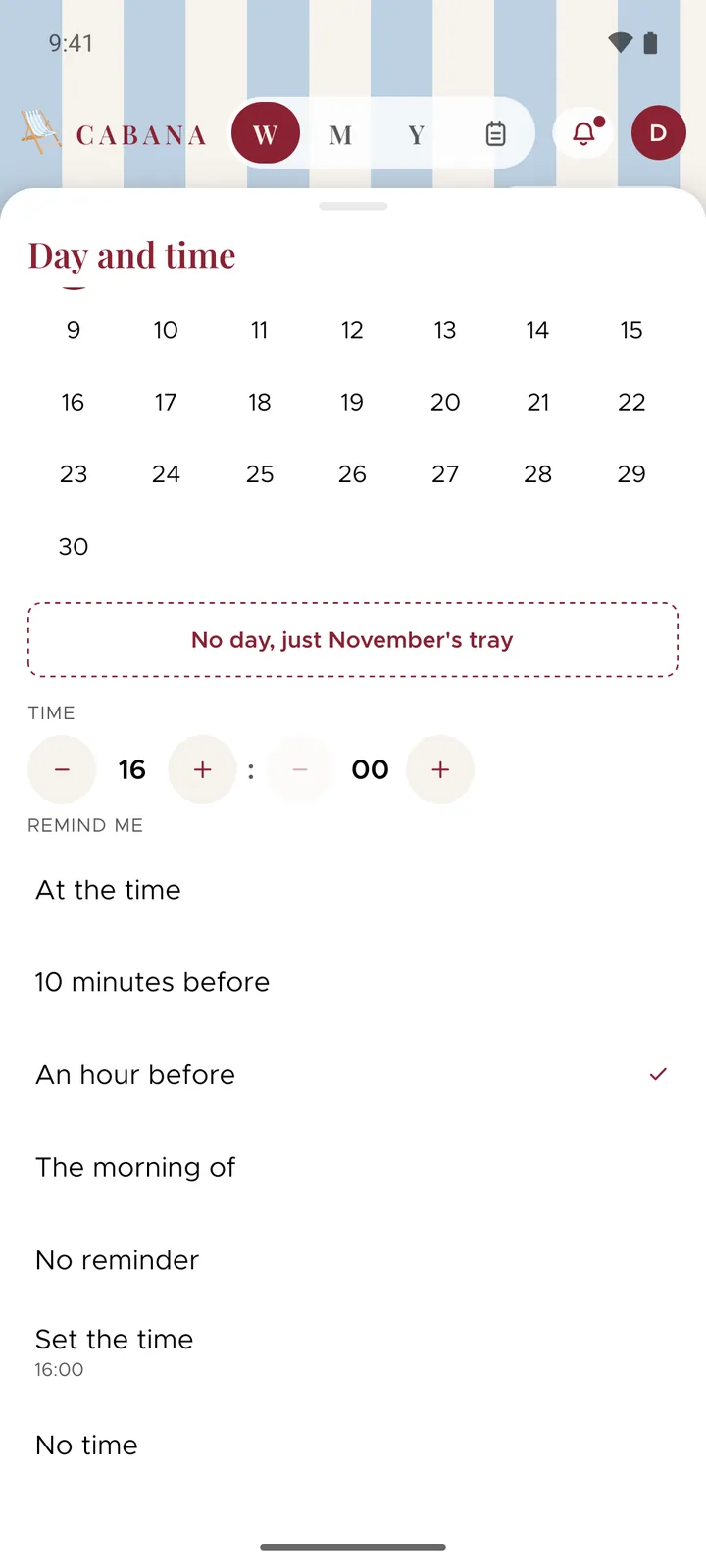
Open the task's menu, the three dots at the end of its row, and choose Day and time. Under the days there's a time: type it or pick it on the website, or step it by the hour and the quarter hour on your phone. Press Set the time and you're done.
Timed tasks go first on their day, earliest first, and everything else stays in your own order under them. The time shows in front of the words, on the website, in the app and on the widgets. On a repeating task it's the same time on every day it repeats.
Only a task on a day can have a time. A sub-task, a task waiting in a month's tray and one in a Bits & bobs note go without, and No time takes one away.
Paste a list, say it or email it in, and a time in the words, like "dentist at 4pm", becomes the task's time.
A tap about it
On your phone, Remind me is under the time, with four to pick from: At the time, 10 minutes before, An hour before or The morning of. A little bell beside the time shows one's set.
The morning of comes with your morning summary, that task at the top, if you've switched the summary on. If you haven't, it's a tap at 8:00.
The first time you pick one, your phone asks whether Cabana may send notifications. If you've said no before, the time's still saved, and your phone's Settings is where to let them through.
Taps belong to the phone you set them on, so the website hasn't got them, and in a shared plan everybody sets their own. Your phone keeps the soonest 30 lined up. They come on top of Cabana's own reminders, which still never send more than two in a day.