
When things are shared with you
What somebody shares with you waits behind one switch. Switch them on and their tasks join your week, in their own colour.
Updated on 16 November 2026
Where it waits
When somebody shares a category with you, the invitation waits behind your bell. Once you've joined, it doesn't fill your week straight away. Look for Shared at the end of your categories, on the website and in the app from version 1.7.0. Press it for everybody sharing with you, each with a switch.
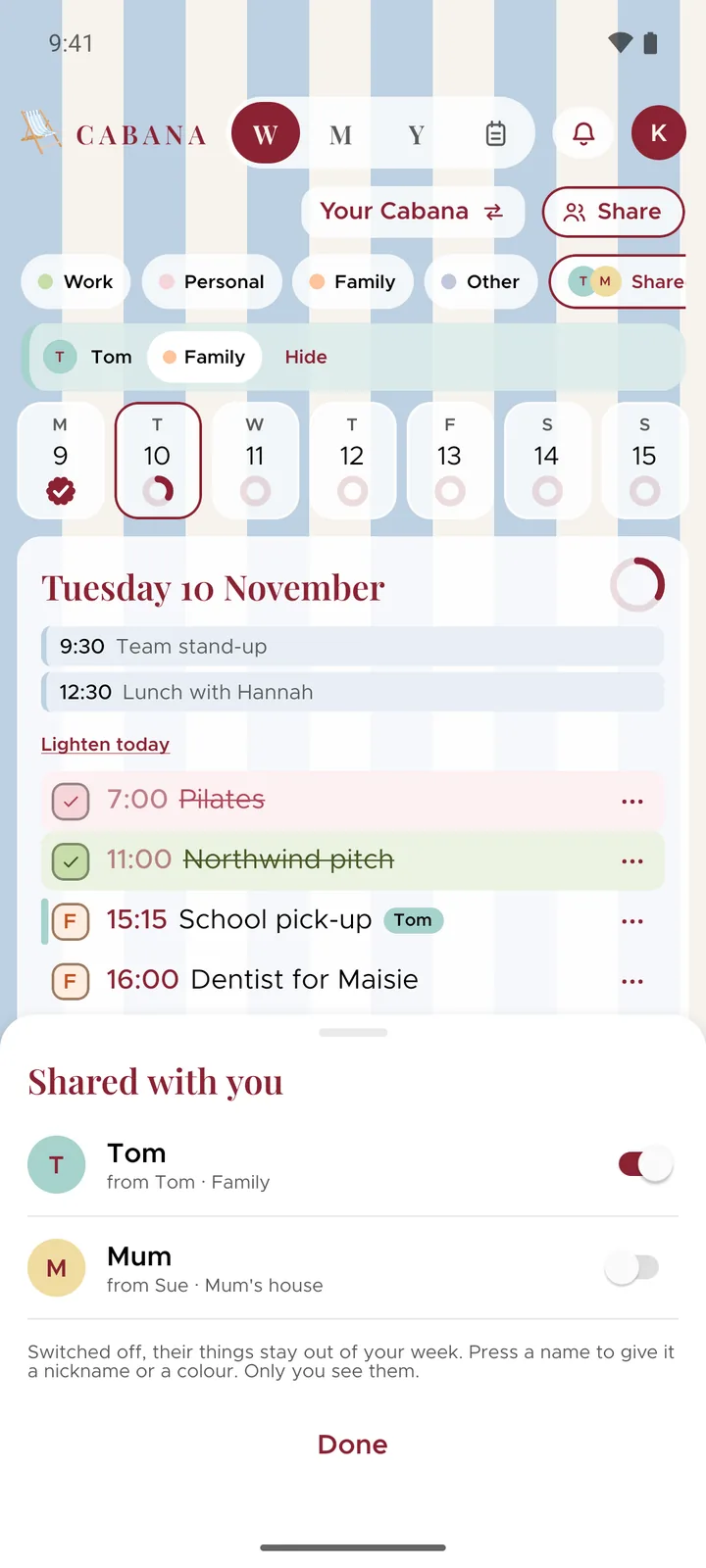
Switch someone on
Switched on, their tasks sit in your days beside yours, each with their colour down its side and their name on it, so you can tell whose is whose at a glance. Where they've let you edit, ticking one off ticks it for them too.
A bar under your categories holds theirs, so you can show just one of them, and Hide on that bar switches them off again. On a phone's month, a dot in their colour sits under any date with something of theirs on it.
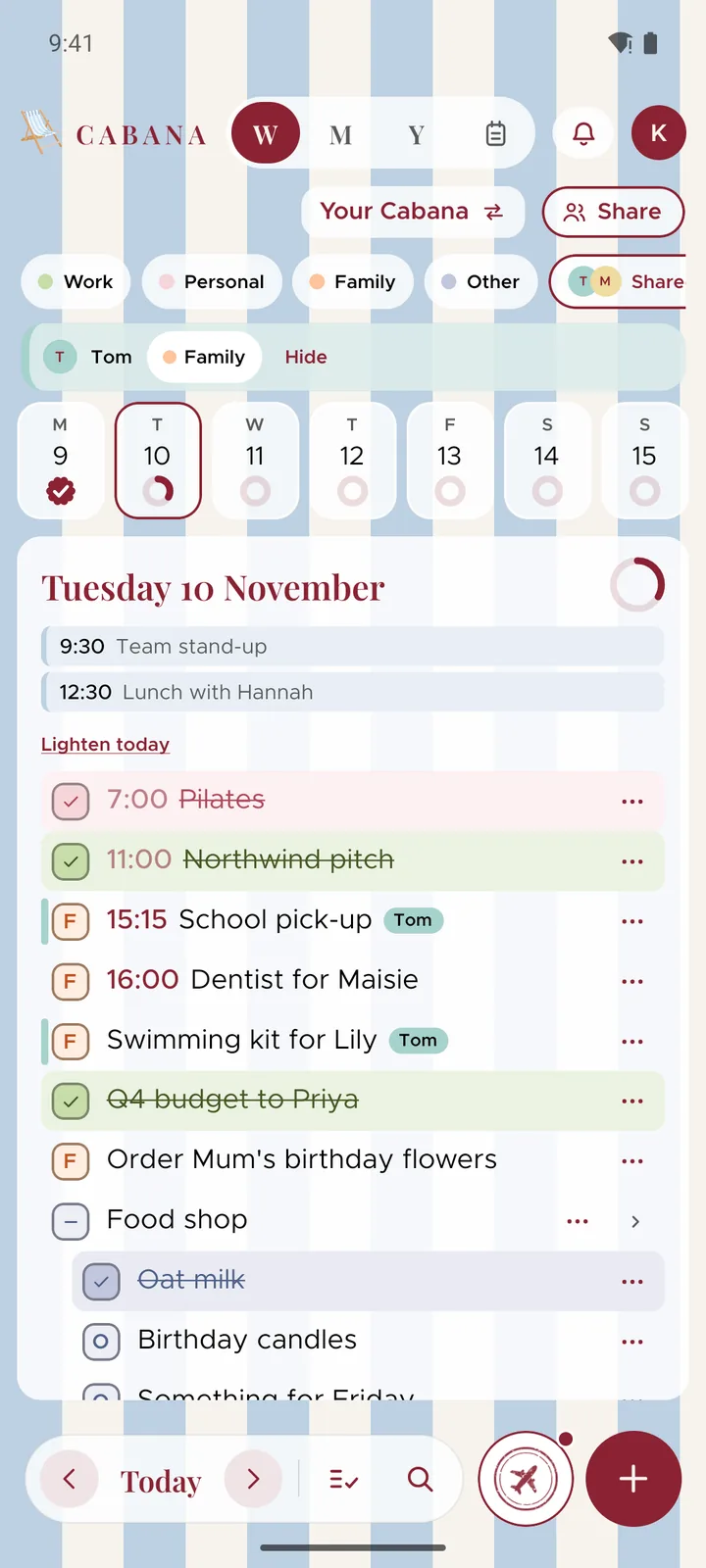
Switched off, their tasks are out of your days, your month, your trays and your widgets until you switch them on. Nothing of theirs is deleted, and they're not told. Your switches are kept with your own plan, so they follow you from the website to your phone.
A nickname and a colour
Press a name in Shared with you to give them a nickname, Mum rather than Susan, say, and to pick their colour from Cabana's stripes. Only you see either. Their own first name stays beside a nickname, so you always know who it is.
Everybody starts with a colour of their own, picked for them and never the same as your stripes.
Just for you
Somebody shared a task you've already got, or one you don't need to see? Press Hide for me in its menu. It's gone from your week and won't count towards your day, and they still see it as before. Everything you've hidden waits under Hidden for you in Shared with you, each with Show again.
A note somebody shares with you can have a name of your own too. Press Rename for me in the note's menu. Only you see it, and the open note still says what they call it, so you always know what it really is. Use their name puts theirs back.
Both are on the website, and in the app from version 1.7.2.
Adding to their categories
If they've let you edit, you can add tasks to what they've shared. When you pick a category for a task, yours come first, then Shared with you: press it, then whose, then which. Cabana says where it went, like "Added to Mum's house", with an undo, and switches that person on if they were off, so the task doesn't vanish from your week.
Leaving
Switching someone off only hides their things. To leave for good, open Your plans and press Leave beside it, under In your week. A note shared with you is left from its own menu. Getting back in takes a new invitation.